


Why eSIM for Family Travel to Korea in 2026?
Let's be honest, family travel is a beautiful chaos. Adding a layer of connectivity anxiety, especially when touching down in a new country like South Korea, is the last thing any parent needs. That's where eSIMs come in, particularly for those of us sporting the latest iPhone 17. Forget the frantic search for a local SIM card vendor at Incheon International Airport after a long flight, with tired kids in tow. With an eSIM, your connectivity is sorted before you even leave home.
For families, the convenience of an eSIM is unparalleled. My own kids, aged 7 and 10, have their travel iPads, which are essential for those long flights and quieter moments in hotel rooms. Keeping them connected for educational apps or a quick Disney+ fix requires a robust data plan. An eSIM on my iPhone 17 acts as the central hub, allowing me to share data and manage their online activities without a hitch. This means I can focus on navigating the bustling streets of Myeongdong or finding that perfect bibimbap spot, instead of worrying about unexpected roaming charges or lost physical SIM cards (a fear that haunts every parent with small, curious hands).
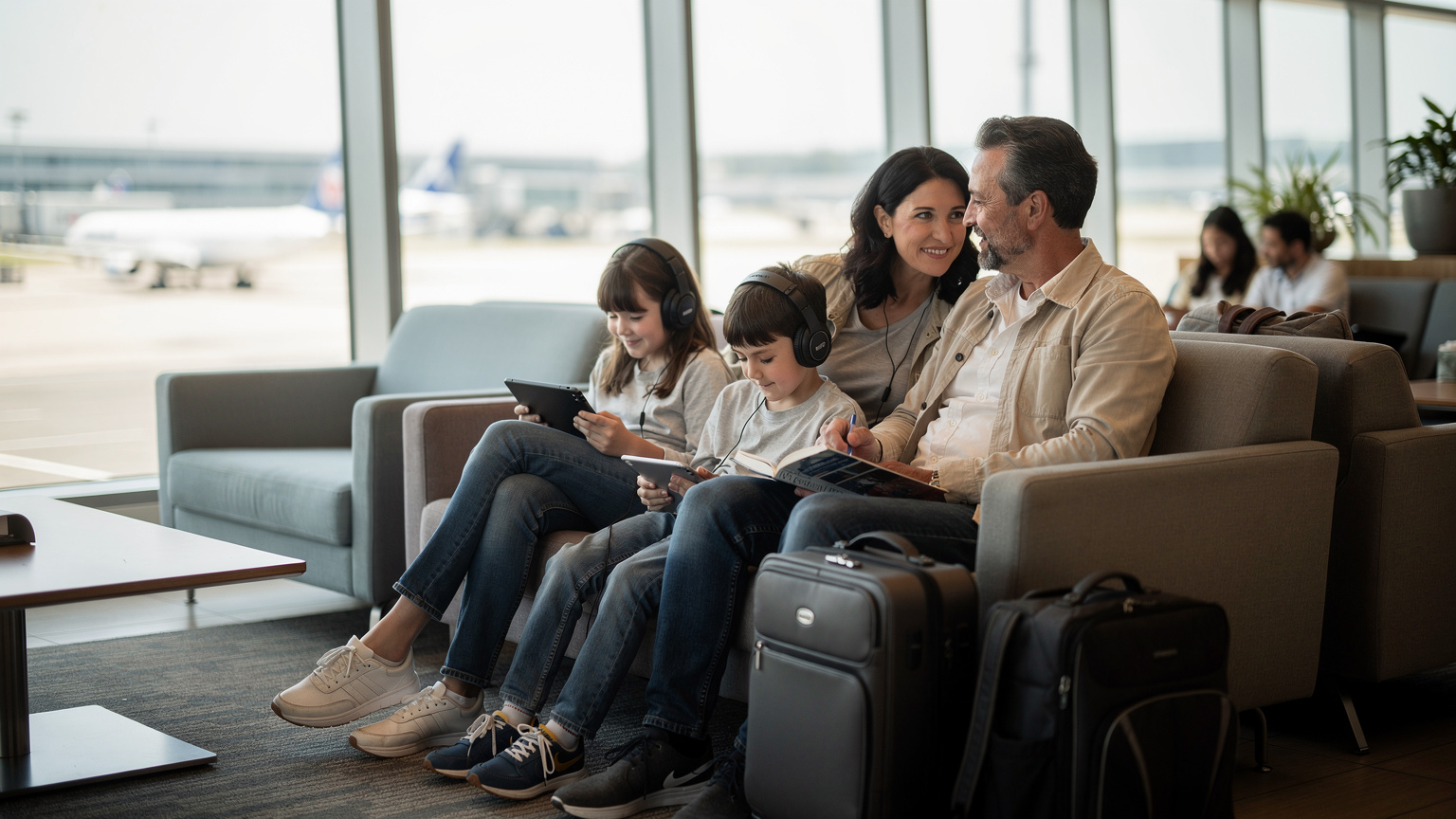
The Peace of Mind Factor
Traveling with children means anticipating every possible hiccup. Having reliable data on your iPhone 17 with an eSIM means you're always connected. This isn't just about Instagramming your kimchi-making class, it's about practicalities. Think Google Maps for navigating the Seoul Metro, Papago for instant Korean translations, or even just calling up a taxi via Kakao T. When you're managing two kids, luggage, and jet lag, knowing your phone is ready to go the moment you land is invaluable. It’s one less thing to add to the mental checklist that, let's be real, is already miles long.
No More Physical SIM Card Scrambles
Remember the days of fumbling with tiny SIM ejector tools and trying to keep track of your home SIM card? Those days are thankfully behind us with the iPhone 17's eSIM-only design. South Korea has excellent mobile infrastructure, and while local SIM cards are readily available, why add an extra errand to your precious vacation time? An eSIM allows for a completely digital setup, making the switch between your home plan and your travel plan as simple as a few taps in your iPhone settings. This is especially useful when you're trying to keep two enthusiastic kids from wandering off at a busy train station.
Choosing the Right eSIM Plan for Your Family
Selecting an eSIM plan isn't a one-size-fits-all situation, especially for a family heading to South Korea. You need to consider data hungry kids, work emails, and all those map lookups. My general rule of thumb for our family of four, with two kids who love their screens, is to aim for a generous data allowance. A 30GB plan for two weeks is often a good starting point for a primary device, especially if you plan to hotspot to other devices.
When we were planning our last family adventure, an Atlas Mountains Trek, I learned just how quickly data can vanish with offline map downloads and a few too many rounds of Roblox. Korea's excellent 5G speeds mean you'll burn through data even faster if you're not careful. Consider a plan that allows for hotspotting, as this will be your lifeline for the kids' iPads and Nintendo Switch Online access.
| Provider | Data Allotment | Validity | Price (approx.) | Notes for Families |
|---|---|---|---|---|
| KT | Unlimited (Fair Usage Policy) | 5-30 days | ₩35,000-₩60,000 | Strongest coverage, good for heavy streaming, but FUP might throttle after 20-30GB/day. |
| SK Telecom | Unlimited (Fair Usage Policy) | 5-30 days | ₩33,000-₩58,000 | Excellent speeds, reliable. Similar FUP to KT. |
| LG U+ | Unlimited (Fair Usage Policy) | 5-30 days | ₩30,000-₩55,000 | Competitive pricing, good network. Check specific FUP details. |
| Global Data Provider (e.g., the service I use) | 5GB-50GB+ (fixed) | 7-30 days | $10-$40 USD | Predictable costs, no FUP surprises, multi-country options. Easy setup. |
Data Plan Sized for Two Kids Streaming Disney+
This is where the rubber meets the road. My kids, bless their hearts, can devour data faster than I can say "Can we watch just one more episode?" Streaming Disney+ or Netflix, even at standard definition, can use 1GB per hour per device. If you have two kids each on an iPad for two hours a day, you're looking at 4GB daily just for entertainment. Multiply that by a two-week trip, and you're at 56GB. Add in maps, social media, video calls to grandparents, and general browsing, and you'll quickly realize that a 10GB plan just won't cut it.
My advice? Consider a 50GB or 100GB regional plan (if available for Northeast Asia) or at least a 30-50GB dedicated Korea plan for your iPhone 17, with the intention of using it as a personal hotspot. This gives you plenty of buffer. Alternatively, some providers offer data-sharing features, which can be fantastic. You can find a suitable eSIM for South Korea that aligns with your family's data needs on our site.
Connectivity Inside Theme Parks and Cruise Ships
Ah, the magic of Everland or Lotte World! And the joy of a cruise around the Korean coastline. These places often have their own Wi-Fi, which can be spotty or expensive. Your eSIM will be your best friend here. Inside theme parks, while there might be Wi-Fi, the sheer number of users can slow it to a crawl. Having your own reliable data means you can quickly check ride wait times, navigate the park layout, or, crucially, let your kids send a quick message on Messenger Kids without a meltdown. Cruise ships are a different beast altogether, often relying on satellite internet, which is notoriously slow and pricey. While offshore, your eSIM may not work, but in port, it will be your speedy connection to the outside world, allowing you to download those crucial offline maps for Busan or Jeju before exploring.
Preparing Your iPhone 17 and Other Devices
Preparation is the love language of family travel, isn't it? Before you even think about boarding that plane, there are a few things to get in order on your iPhone 17 and your kids' devices. This pre-trip ritual saves so much headache later on.
First, ensure your iPhone 17 is unlocked. Most iPhones purchased directly from Apple are, but if you're on a contract, double-check with your carrier. An unlocked phone is crucial for eSIM functionality. Next, make sure your iOS is updated to the latest version. New eSIM features and stability improvements are constantly being released.
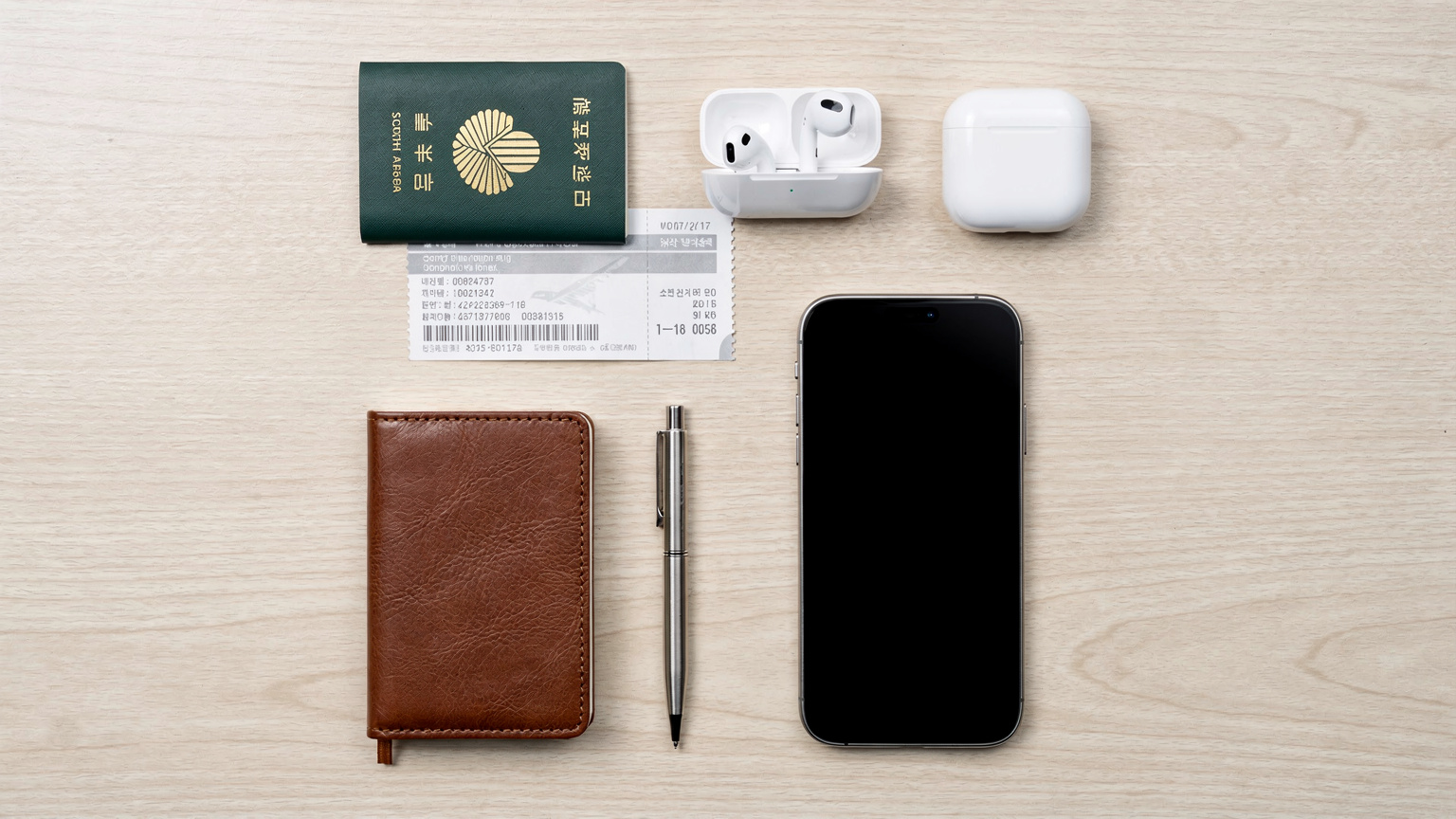
Pre-Loading Apps Before the Flight
This is non-negotiable. Seriously. Imagine being on a 14-hour flight with nothing new for the kids to do. Disaster. Before you leave home, ensure all essential apps are downloaded onto your iPhone 17 and, more importantly, onto the kids' devices (iPads, Android tablets, Switch consoles). For Korea, think:
- Naver Map or KakaoMap: Google Maps isn't always reliable for public transport in Korea. These local apps are essential.
- Papago: A fantastic translation app for Korean.
- KakaoTalk: The ubiquitous messaging app in Korea.
- Offline games: Minecraft, Toca Life World, Roblox (downloaded experiences), or anything that doesn't require constant internet.
- Educational apps: For those rare moments of quiet learning.
- Streaming content: Download movies or shows from Netflix, Disney+, or YouTube Kids onto devices for offline viewing. This saves precious data later.
Also, make sure the parental control settings on all devices are configured. For instance, on iPads, you can set screen time limits and content restrictions via Family Sharing, which can be a lifesaver when you need a quiet dinner. These controls work regardless of whether the device is on Wi-Fi or using shared cellular data.
Optimizing Your iPhone 17 Settings
A few tweaks can make a big difference:
- Disable Wi-Fi Assist: This feature uses cellular data when Wi-Fi is poor. Turn it off in Settings > Cellular to prevent unexpected data drain.
- Background App Refresh: Go to Settings > General > Background App Refresh and turn it off for apps you don't need constantly updating.
- Automatic Downloads: In Settings > App Store, turn off 'App Downloads' and 'App Updates' over cellular data.
- Low Data Mode: For your travel eSIM, activate Low Data Mode in Settings > Cellular > (Your Travel eSIM) > Low Data Mode. This pauses automatic updates and reduces background network usage.
Step-by-Step iPhone 17 eSIM Activation Guide
Activating your eSIM on the iPhone 17 is surprisingly simple. I always recommend doing this before you even leave home, ideally a day or two before your flight. That way, if you hit any snags, you have your home Wi-Fi and ample time to troubleshoot. No one wants to be stuck trying to figure out data plans while waiting for luggage at Incheon.
Purchasing Your eSIM Plan
First things first, you need to acquire your eSIM. Head over to a reputable provider's website. You'll typically choose your destination (South Korea), select a data package that suits your family's needs (remember those Disney+ demands!), and complete the purchase. You'll then receive an email with your eSIM activation details, usually a QR code and manual activation instructions.
"I always print out the QR code and jot down the manual details as a backup. You never know when a dead battery or a glitchy email might strike, especially with kids eager to get online."
Activating via QR Code, the Easiest Way
This is my preferred method, especially with the iPhone 17's streamlined process:
- Open Settings: Tap on the 'Settings' app on your iPhone 17.
- Navigate to Cellular: Select 'Cellular' (or 'Mobile Data' in some regions).
- Add eSIM: Tap 'Add eSIM'.
- Scan QR Code: Choose 'Use QR Code'. Your camera will activate. Scan the QR code provided in your email. Make sure you're in a well-lit area.
- Confirm & Label: Follow the on-screen prompts. Your iPhone 17 will detect the new plan. You'll be asked to label the new eSIM, which is crucial for managing multiple lines. I always use something descriptive like 'Korea Travel' or 'SK Data'.
- Set as Primary: Decide if this new eSIM should be your primary line for data. For travel, you'll want it to be. You can still use your home line for calls/texts if needed, but make sure data roaming is OFF for that line.
Manual eSIM Activation
If for some reason the QR code isn't working, or if you prefer to type, here's how to manually add your eSIM:
- Open Settings > Cellular > Add eSIM.
- Choose 'Enter Details Manually'.
- Input SM-DP+ Address & Activation Code: You'll find these details in the email from your eSIM provider. Carefully type in the SM-DP+ Address and the Activation Code.
- Confirmation: Tap 'Next' or 'Continue' and follow any further prompts. The process is similar to QR code activation from here on, including labeling your plan.
Managing Data and Parental Controls on the Go
Once your eSIM is active, the real fun begins, which for a parent, means managing usage. It's not just about keeping costs down, but also ensuring screen time doesn't completely take over the Korean cultural experience. (Though, let's be real, a quiet moment with an iPad at a cafe in Hongdae is sometimes exactly what everyone needs.)
Parental-Control Features That Work on the eSIM Line
Good news: your iPhone's built-in parental controls, specifically Screen Time, work seamlessly with eSIM data. This is a huge relief. You don't need to worry about your kids circumventing limits just because you're on a new network. Here's how to leverage them:
- Screen Time: Set daily time limits for specific apps (e.g., 2 hours for Roblox) or categories (e.g., Entertainment). You can also schedule Downtime, forcing devices to lock during certain hours (hello, early bedtime!). This is all configured through Family Sharing, which is linked to your Apple ID, not your cellular plan.
- Content & Privacy Restrictions: Block inappropriate websites, restrict explicit content in music or movies, and prevent in-app purchases. This is particularly important when kids are exploring new apps or games.
- Communication Limits: Control who your children can communicate with, ensuring they only talk to approved contacts.
These settings are managed on your iPhone 17 (or another parent's device) and apply to all devices in your Family Sharing group, whether they're connected via Wi-Fi, your hotspot, or even their own separate eSIM data (if they have a cellular iPad, for example). This means you have consistent control, no matter where you are in Seoul.
Monitoring Data Usage on Your iPhone 17
Keeping an eye on your data is key to avoiding unexpected top-ups. Your iPhone 17's built-in Cellular settings provide a good overview. Go to Settings > Cellular, and scroll down to see your current period's usage. While this gives you a total, it won't break down per app unless you reset the statistics regularly. For a more granular view, check your eSIM provider's app or website. Many offer real-time data tracking.
| Feature | Purpose | Benefit for Families | How to Access on iPhone 17 |
|---|---|---|---|
| Screen Time | Manage device usage, app limits, downtime | Controls kids' screen habits, ensures sleep/study time, works on eSIM data. | Settings > Screen Time |
| Content & Privacy Restrictions | Filter explicit content, prevent unauthorized purchases | Protects kids from inappropriate material, prevents surprise bills. | Settings > Screen Time > Content & Privacy Restrictions |
| Personal Hotspot | Share your iPhone's data connection with other devices | Connects kids' iPads/Switch to your eSIM data, consolidating usage. | Settings > Personal Hotspot |
| Low Data Mode | Reduces cellular data usage for selected lines | Extends your eSIM data plan, reduces background activity, prevents overage. | Settings > Cellular > (Your eSIM) > Low Data Mode |
Connectivity Beyond the iPhone 17
While your iPhone 17 is the star of the show, it's never alone on a family trip. The kids have their devices, maybe even a smart watch, and sometimes you need to connect a laptop for a quick check-in with work (because even on vacation, life sometimes calls). This is where understanding your connectivity ecosystem becomes crucial.
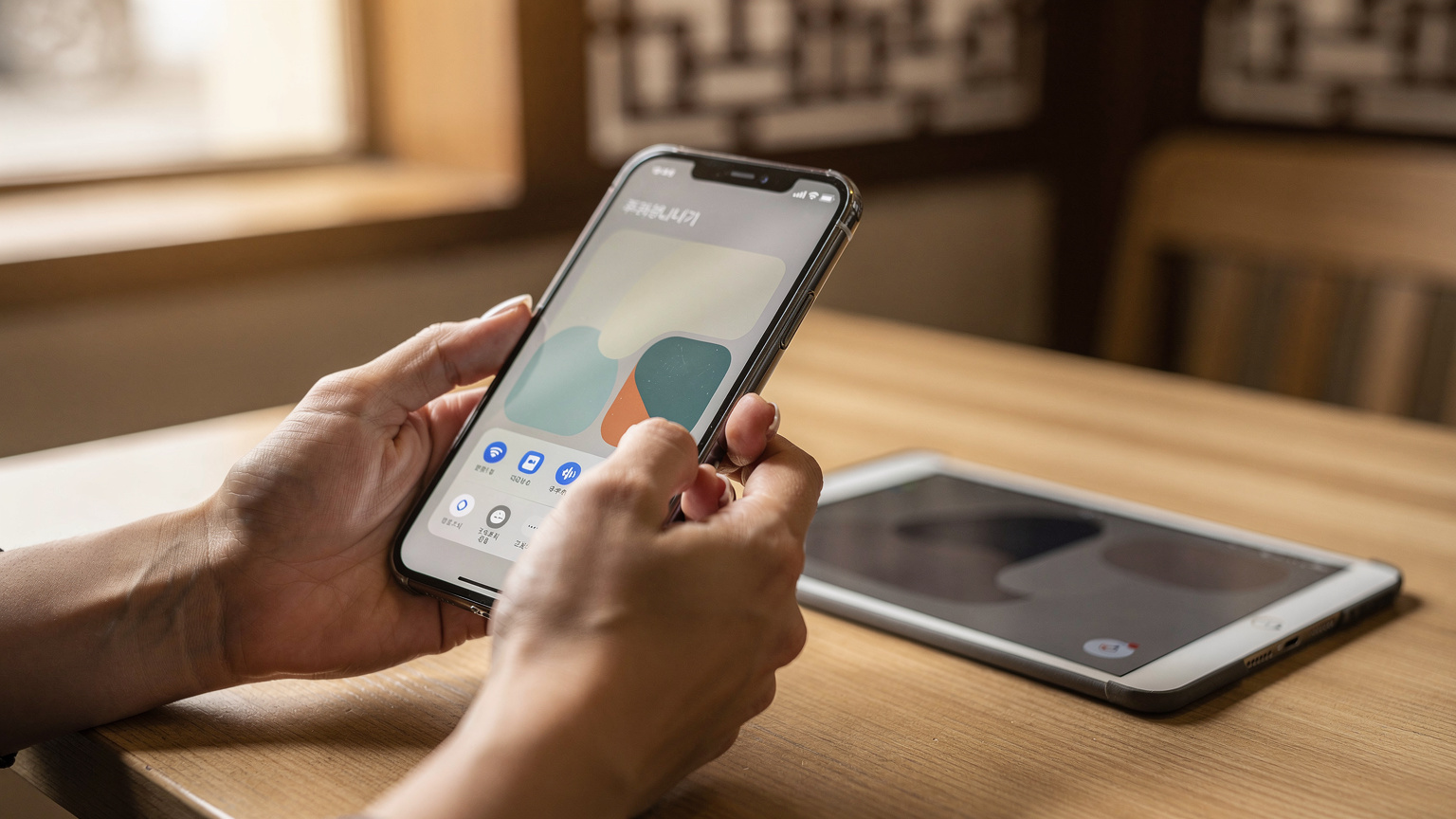
Hotspotting to Keep Everyone Connected
Your iPhone 17's Personal Hotspot feature will be your secret weapon. It allows you to share your eSIM's data connection with up to five other devices simultaneously. This means the kids' iPads can connect, their Nintendo Switches can access online games, and even a laptop can hop online for urgent tasks. To activate, go to Settings > Personal Hotspot on your iPhone 17. Make sure to set a strong Wi-Fi password.
A word of caution: hotspotting can drain your iPhone's battery quickly. Always carry a portable power bank, especially when out exploring places like the bustling Gyeongbokgung Palace or the serene Bukchon Hanok Village. There's nothing worse than a dead phone when you're trying to find your way back to the hotel with two tired kids.
What to Do When the iPad Needs a Top-Up
Even with careful planning and screen time limits, there will be moments when an iPad runs low on battery, or the kids have burned through their downloaded content. This is where your reliable eSIM comes in. If the iPad needs a quick data top-up for a new game download or a quick video call, simply connect it to your iPhone 17's personal hotspot. If the iPad itself has cellular capabilities, you could even consider adding a separate eSIM plan to it for truly independent connectivity, though this can get pricey. For us, the iPhone hotspot strategy works best.
For those times when you're caught without a power bank, many cafes and even some subway stations in Korea offer charging points. Keep an eye out for them. Having an eSIM for your remote office in places like Chiang Mai has taught me the importance of always being prepared for power outages, even on vacation.
Troubleshooting Common eSIM Issues
Even with the best planning, sometimes technology throws a curveball. Don't panic. Most eSIM issues are minor and easily fixable. I've been there, staring at a 'No Service' message in a foreign country, wondering if I'll ever connect to the internet again. Take a deep breath, and let's go through some common fixes.
My eSIM Is Not Activating
This is the most common hiccup. Here’s a quick checklist:
- Internet Connection: Did you try activating your eSIM with a stable internet connection? Often, you need Wi-Fi to download the eSIM profile.
- Restart Your iPhone 17: A classic for a reason. Often, a simple restart can resolve minor software glitches.
- Check APN Settings: Sometimes, the Access Point Name (APN) settings need to be manually configured. Your eSIM provider will give you these details. Go to Settings > Cellular > (Your eSIM) > Cellular Data Network and enter the APN.
- Ensure Roaming is On (for the eSIM): For some eSIMs, particularly regional ones, you might need to enable Data Roaming for that specific line. Go to Settings > Cellular > (Your eSIM) > Data Roaming.
- Contact Support: If all else fails, reach out to your eSIM provider's customer support. They can often diagnose the issue quickly. Keep your order number handy.
Slow Data Speeds or Intermittent Connectivity
Korea boasts incredible 5G, so if you're experiencing slow speeds, something's amiss.
- Check Coverage: Are you in a basement, a dense urban area, or perhaps a remote part of the countryside? Even in Korea, there can be dead spots.
- Network Selection: Try manually selecting a network operator. Go to Settings > Cellular > (Your eSIM) > Network Selection and toggle off 'Automatic'. Then, choose one of the available Korean carriers (KT, SK Telecom, LG U+).
- Reset Network Settings: This can clear any corrupted network configurations. Go to Settings > General > Transfer or Reset iPhone > Reset > Reset Network Settings. (Note: This will erase all Wi-Fi passwords and cellular settings, so be prepared to re-enter them.)
- Fair Usage Policy: If you're on an "unlimited" plan, you might have hit a Fair Usage Policy threshold, leading to throttled speeds. Check your provider's terms. This happened to us once during our Singapore Grand Prix trip when the kids were non-stop streaming race replays.
Maximizing Your Korea Trip with eSIM
With your iPhone 17's eSIM up and running, you're not just connected, you're empowered. This means less stress and more time soaking in the vibrant culture of South Korea. From the historical grandeur of Gyeongbokgung to the futuristic vibes of Dongdaemun Design Plaza, having reliable data at your fingertips enhances every family moment.
Utilizing Offline Maps and Downloads
Even with a robust eSIM plan, preparing for offline scenarios is smart. Before you venture out, download offline maps for key areas in Naver Map or KakaoMap. This is especially useful for subway navigation, where signal can occasionally drop, or if you're exploring areas outside major cities. For the kids, ensure their favorite games and shows are downloaded for offline play. This strategy is fantastic for managing screen time, as it reduces their reliance on constant internet access, encouraging them to look up and experience their surroundings.
Think of it as setting boundaries, even for digital fun. It's similar to how I plan our family's Europe-42 Pass, making sure we have offline options for Rome's ancient ruins or Paris's charming streets.
Staying Connected for Emergencies
This is a serious point for any family traveler. Having a reliable connection isn't just for entertainment, it's for safety. In an emergency, your eSIM ensures you can quickly call for help, access emergency services, or use translation apps if there's a medical issue. Make sure your iPhone 17's Medical ID is up to date and easily accessible from the Lock Screen, containing crucial information about your family's health conditions and emergency contacts. This small step can make a huge difference in a stressful situation.
Capturing and Sharing Memories
Finally, your eSIM lets you share those unforgettable Korean family moments instantly. Whether it's a candid shot of your kids trying street food in Gwangjang Market (maybe a little too spicy!), a panoramic video from the top of N Seoul Tower, or a video call with grandparents showing off the adorable LINE Friends Store, you can upload and share without a second thought. Just remember to occasionally put the phone down and truly live in the moment. Happy travels to Korea!
Frequently Asked Questions
Will my iPhone 17 eSIM work on older iPhone models or other devices?
The iPhone 17's eSIM setup process is optimized for its hardware and iOS version. While the eSIM technology is generally compatible with iPhone XS and newer models, the specific steps might vary slightly. For other devices like iPads or Android phones, you'll need to check their eSIM compatibility and follow their respective setup guides, as the process can differ.
Can I use my home cellular plan for calls and texts while using an eSIM for data in Korea?
Yes, absolutely. Your iPhone 17 supports Dual SIM, allowing you to have both your home physical SIM (if applicable) or eSIM and your travel eSIM active simultaneously. You can designate your travel eSIM for cellular data and keep your home line active for calls and texts. Just be sure to disable data roaming for your home line to avoid exorbitant charges.
What's the best way to manage data usage for multiple devices like kids' iPads?
The most straightforward way is to use your iPhone 17's Personal Hotspot feature. Your eSIM data will be shared with connected devices. Alternatively, if your kids' cellular iPads are eSIM-compatible, you could purchase a separate, smaller data eSIM for each, but this often increases costs. Using your iPhone as a central hotspot gives you more control over overall data consumption.
Are there any apps I should pre-download for a family trip to Korea?
Yes, several are crucial. For navigation and public transport, download Naver Map or KakaoMap. Papago is essential for translations. KakaoTalk is the primary messaging app. For entertainment, pre-download movies/shows from Netflix/Disney+ and offline games for the kids to save data and ensure entertainment during flights or downtime.
How much data should I get for a family of four for a two-week trip to Korea?
For a family of four, including two kids who will use devices for streaming and games, a 50GB or even 100GB plan for two weeks is a safer bet. Streaming Disney+ for two kids can consume 4GB+ daily. Factoring in navigation, social media, and communication, a generous plan prevents constant worry about running out of data or needing expensive top-ups.
Will an eSIM work inside subway tunnels or theme parks in Korea?
South Korea has excellent mobile coverage, including within most subway lines in major cities like Seoul and Busan. You can expect your eSIM to work reliably. Inside theme parks like Everland or Lotte World, coverage is generally strong. While there might be park Wi-Fi, your dedicated eSIM data often provides a faster, more consistent connection, especially during peak times.
What if my eSIM doesn't activate or I experience slow speeds?
First, try restarting your iPhone 17. If that doesn't work, ensure you have a stable Wi-Fi connection for activation, check if Data Roaming is enabled for your eSIM line in settings, and confirm APN settings with your provider. For slow speeds, try manually selecting a different local network operator (SK Telecom, KT, LG U+). If issues persist, contact your eSIM provider's support.

